Accessibility
Talk Instead of Type: Dictating Emails When Your Hands Won’t Cooperate
Typing on a phone is a fine-motor task. Small keys, fast taps, precise thumbs. For a lot of people, it was never comfortable, and it gets harder. The CDC’s most recent estimate is that 53.2 million US adults, about one in five, have doctor-diagnosed arthritis (CDC, Preventing Chronic Disease, 2025), and the rate climbs steeply after 65.
Quick version: Every Android phone can type what you say. On most phones, the microphone button is on the keyboard, top right. Tap it, talk, and tap it again to stop. It is faster than typing for most people over 60, and it is dramatically easier if your hands hurt. This post covers how to turn it on and the handful of habits that make it work well.
The phone was not designed for those hands. But the phone can listen, and the listening part is better than it was even three years ago.
What dictation actually is
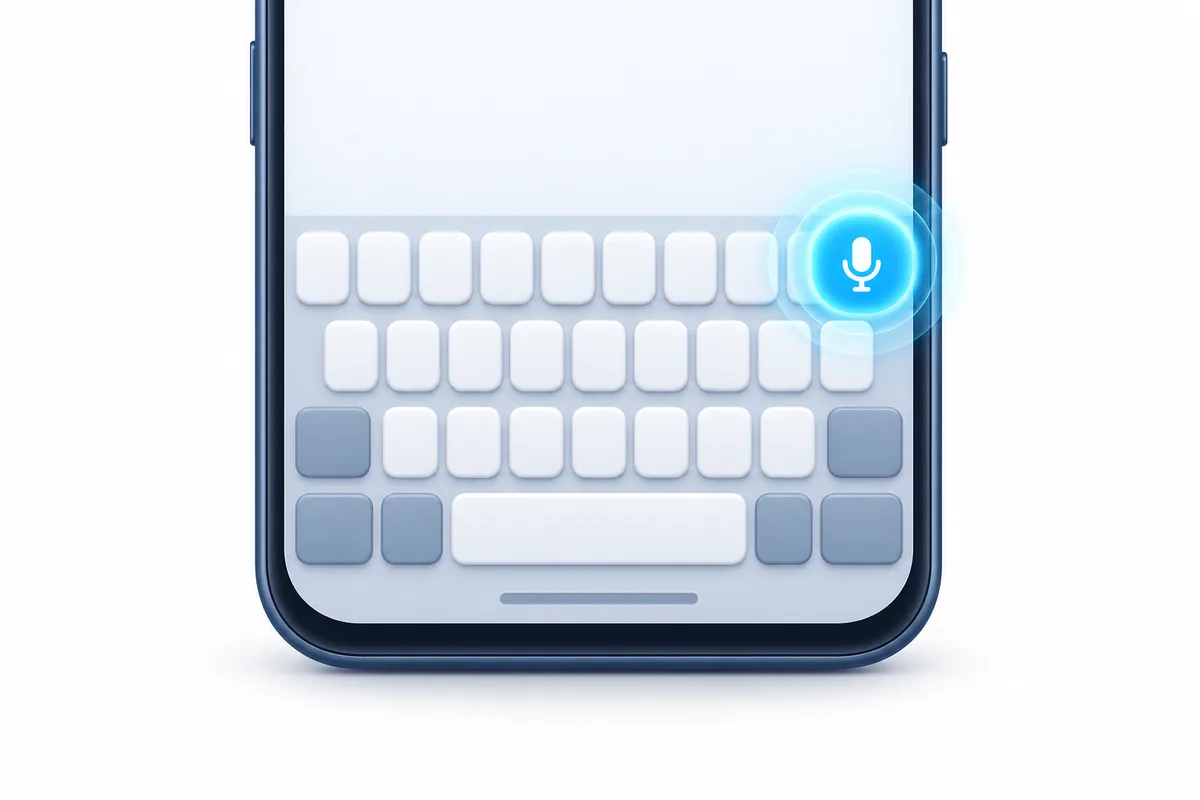
You tap a microphone, you talk, and the words appear in the email as you say them. That is it. It is not a separate app. It is built into the keyboard on every Android phone.
Two things surprise people:
- It is accurate. Not perfect, but close. It handles normal speech at normal speed, it puts in capital letters, and on most phones it adds periods and commas on its own.
- You do not need to talk like a robot. Speak the way you would to a person sitting next to you. Pauses are fine.
Turning it on
On most Android phones this is already on. Here is how to check.
- Open any email and tap in the message area so the keyboard appears.
- Look at the top right of the keyboard, or the row above the letters. There should be a small microphone icon.
- Tap it. The keyboard will change to a “Speak now” screen. Say a sentence.
If there is no microphone:
- Open Settings.
- Tap System (or General management on Samsung).
- Tap Keyboard (or Language and input).
- Tap the keyboard you use, usually Gboard or Samsung Keyboard.
- Tap Voice typing and make sure it is on.
If you cannot find it, the fastest fix is to install Gboard from the Play Store. It is Google’s free keyboard, it has the best dictation, and once it is installed the microphone is always there.
How to use it well
A few habits make the difference between “this is neat” and “I use this every day.”
Say the punctuation. “Hi Linda comma. Thank you for the photos period.” On newer phones this is often automatic, but saying it works everywhere.
Say “new line” or “new paragraph.” The phone starts a fresh line.
Talk in short pieces. Two or three sentences, then stop and look. If something came out wrong, tap the word and fix it, then keep going. Trying to dictate a whole email and fix it at the end is what makes people give up.
Fix words by voice. On Gboard, if the phone heard “Lynda” when you said “Linda,” say “delete” to remove the last word, then say it again. Or just tap the word and pick the right one from the suggestions.
Read it once before sending. Dictation is good, but it is not reading your mind. “Your” and “you’re” will be wrong sometimes. It takes ten seconds.
Where it does not work well
Honesty helps here.
- Background noise. A TV in the room, a restaurant, a car with the windows down. Move somewhere quieter or wait.
- Names and unusual words. Your granddaughter’s name, your street, your medication. The phone guesses. Type those, or tap the word and pick from the list.
- Whispering. It needs normal speaking volume.
None of those are reasons not to use it. They are reasons to keep the keyboard around for the last two percent.
For hands that shake
If tremor is the issue rather than pain, two extra settings help:
- Touch and hold delay. Settings, Accessibility, Timing controls (or “Touch and hold delay”), set to Long. The phone stops mistaking a shaky tap for a press-and-hold.
- Bigger keyboard. In Gboard: Settings, Preferences, Keyboard height, set to Tall or Extra tall. Larger keys for the moments you do need to type.
Both take a minute and both stay set.
How Easy Mail fits in
Dictation works in Easy Mail the same way it works everywhere: tap in the message, tap the microphone, talk. Where Easy Mail adds something is on the other side. The AI reply feature can draft a full response from a short prompt, so instead of dictating five sentences you can dictate one, “tell her yes and ask what time,” and edit the draft it gives you. Fewer words spoken, fewer taps, same email.
Get Easy Mail Email Launcher on Google Play.
Frequently asked questions
Is the phone recording me all the time?
No. It listens only while the microphone screen is open, and stops when you tap the microphone again or stop talking for a few seconds.
Does dictation work without internet?
On most newer phones, yes. Gboard can dictate offline once the language pack is downloaded, which happens automatically the first time you use it on Wi-Fi.
Can I dictate in a language other than English?
Yes. In Gboard settings, tap Languages, add the second language, and you can switch with the globe key on the keyboard. It dictates in whichever language is selected.