Finding email
Where Did My Email Go? How to Find a Message You Know You Received

You saw the email. You may have even read it. Now you are looking at your inbox and it is not there, and you are starting to wonder if you imagined it.
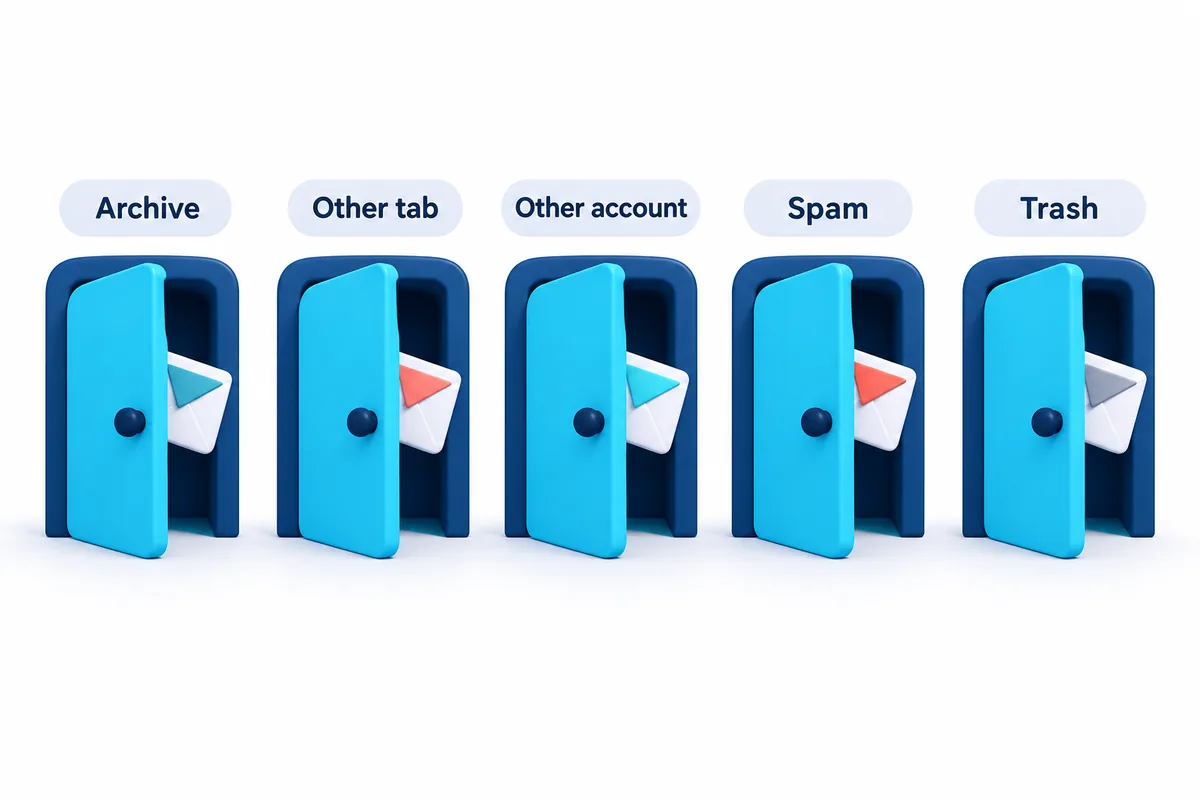
Quick version: Your email is almost never actually gone. It is in one of five places: archived, sorted into a different tab, in a different account, in Spam, or in Trash. The fastest way to find it is the search bar. Type the name of the person who sent it and nothing else.
Email apps are built to organize messages and make your life easier. However, a thumb can accidently brushes the screen and poof, a message gets archived. The app decides a message is a “promotion” and files it under a tab you have never opened. Your phone has two email accounts on it and you are looking at the wrong one. None of this is you doing something wrong. It’s your app just trying to help.
Here is where to look, in order of most likely to least likely.
1. It got archived (this is the usual answer)
On most Android email apps, swiping a message left or right in the inbox can sometimes archive it. Archive does not delete anything. It just takes the message out of the inbox and keeps it in the background.
Google’s own help page puts it plainly: archived messages are removed from your inbox but stay in your account, and you can find them under “All Mail” (Gmail Help: Archive messages).
To find it in Gmail on Android:
- Open Gmail.
- Tap the three lines in the top left corner.
- Scroll down and tap All mail.
- Every message you have ever received that is not in Spam or Trash is here, newest first.
In Yahoo Mail: tap the three lines, then Archive. In Outlook: tap your profile picture or the three lines, then Archive.
If you want to put it back in the inbox, open the message, tap the three dots in the top right, and tap Move to Inbox.
2. It went into a different tab
Gmail sorts incoming mail into tabs: Primary, Promotions, Social, and sometimes Updates. Only Primary shows by default when you open the app. A receipt from a store, a message from your pharmacy, or a newsletter from your church can all land in Promotions or Updates.
To check: in Gmail, tap the three lines and look for Promotions, Social, and Updates near the top of the list. Tap each one.
If a message from a real person keeps landing in the wrong tab, open it, tap the three dots, tap Move to, and choose Primary. Gmail learns from that.
3. You are in the wrong account
If you have ever set up a second email address on your phone (a Yahoo account from years ago, a Gmail account someone made for you), you might just be looking in the wrong mail app.
To check in Gmail: tap your profile picture or initial in the top right. All of your accounts are listed. Tap a different one and look again.
This one catches people constantly, and it is the reason some of our readers switched to a single inbox that shows every account at once. More on that at the bottom.
4. It was marked as spam
Email apps do their best to determine what’s junk, but sometimes they get it wrong. A message from a new doctor’s office, a contractor, or a grandchild’s new email address can get flagged.
To check: tap the three lines, scroll down, tap Spam. If you find your message, open it and tap Report not spam (Gmail) or Not spam (Yahoo, Outlook). It moves back to your inbox and future messages from that sender will come through.
Spam empties itself after 30 days, so check this one sooner rather than later.
5. It was deleted (and you can still get it back)
If a message was deleted, it is in Trash. In Gmail and Outlook, Trash holds messages for 30 days before permanently removing them. Yahoo keeps them for 7 days.
To check: three lines, scroll to Trash (Gmail, Yahoo) or Deleted (Outlook). Open the message, tap the three dots, tap Move to Inbox.
How is Easy Mail: Email Launcher a Better Solution?
You can skip all five steps above by using Easy Mail Email Launcher. Easy Mail creates a unified inbox that organizes all your email accounts into one inbox. You can use the search bar at the top of your inbox to find the email you’re looking for. It searches every account and folder all at once (including spam, trash and special topic folders.)
How di you use the Easy Mail search bar?
- Type the sender’s name. Just the name. “Dr. Patel” or “Linda” or “Walgreens.”
- Or type one unusual word you remember from the email. “Invoice.” “Reunion.” “Prescription.”
Do not do this:
- Do not type the whole subject line. One typo and nothing comes up.
- Do not type a sentence. “The email from my sister about Thanksgiving” will not find anything. “Thanksgiving” will.
How Easy Mail help you keep your inbox clean
Easy Mail offers multiple email cleanup features. That means you’ll have fewer promotions piling up and the messages from actual people are easier to spot. Our Gmail cleanup guide goes deeper on that, and Android email settings covers the sync options that decide what shows up on your phone at all.
One inbox for every account, so nothing hides in the app you forgot to open. Get Easy Mail Email Launcher on Google Play.
Frequently asked questions
I archived an email by accident. Is it gone?
No. Archive never deletes. Open All Mail (Gmail) or Archive (Yahoo, Outlook), find the message, and move it back to your inbox.
Does deleting an email on my phone delete it everywhere?
Yes, if the account is set up normally. Gmail, Yahoo, and Outlook all sync, so a message deleted on your phone is also deleted on your computer. It still sits in Trash for 30 days (7 for Yahoo) if you change your mind.
Why is my search not finding anything?
Usually because too many words were typed. Delete everything in the search box and type only the sender’s first name. If that fails, try one word from the subject. If that fails too, check whether you are in the right account.
Sources: Gmail Help: Archive or mute Gmail messages · Gmail Help: Search in Gmail