Android email made simple
The Best Android Email App for Keeping Your Inbox Simple, Organized, and Stress-Free
If your mornings begin with switching between two, three, or even four different email apps just to see what came in overnight, you are far from alone. Many of us have built up a small collection of accounts over the years: one for work, one personal, maybe one tied to shopping, and an older address we still check now and then. Keeping up with all of them on an Android phone can feel like a part-time job.
It does not have to feel that way. The right Android email app can put every inbox in one clean place, so you spend less time managing messages and more time on the rest of your day. Below is a practical checklist of what to look for, then a clear look at how Easy Mail Email Launcher handles the jobs that matter most.
Want every account in one swipe, with AI help when you write and quick tools to clear clutter? Start with Easy Mail on Google Play.
What to Look for in an Android Email App
Before you install anything new, it helps to know what a strong Android email app should actually do for you. Use this as your checklist. Easy Mail is built around these same priorities.
Does It bring all your email accounts together?
Jumping between apps to check different inboxes wastes time and attention. A great Android email app lets you see Gmail, Yahoo, Outlook, and other providers in one view. No logging in and out. No messages hiding in a second app you forgot to open.
Is it easy to start using right away?
You should not need a long tutorial or a tech-savvy relative on standby. Clear buttons, familiar menus, and a layout that makes sense on the first open matter more than flashy extras you will never use.
Does it help you deal with spam and clutter?
Promos, newsletters you barely remember, and plain junk pile up fast. Look for simple tools that clear large batches quickly, and a way to stop repeat spam senders from filling the list again.
Does it help you write better emails, faster?
Whether you are answering a friend or writing something more formal to a doctor’s office or a business contact, the right words do not always come quickly. Built-in writing help is a real advantage when you want to sound clear without staring at a blank draft.
Does it feel comfortable on your phone?
That means readable text, easy tap targets, light and dark mode support, and mail that loads without making you wait. Comfort adds up across a full day of checking in.
How to Get All Your Emails in One Place on Android
This is the question most people are really asking when they search for a better Android email app. They do not want another icon to babysit. They want one place to see what came in.
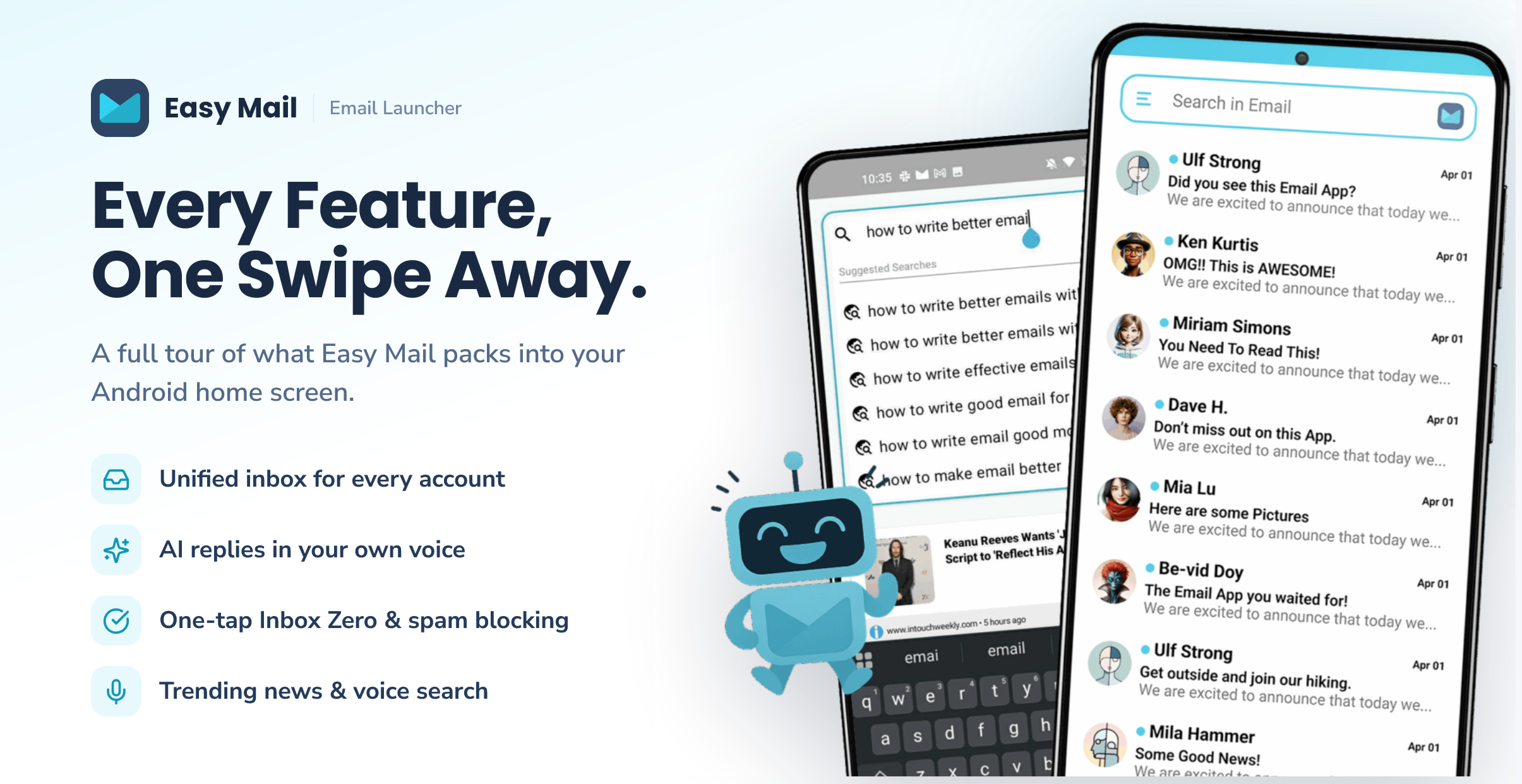
Easy Mail’s unified inbox merges your favorite providers into one fast view. Tap “+” to add accounts, then group them together or keep them separate with a single toggle. Gmail, Yahoo, Outlook, and more can live side by side without the old app shuffle.
Even better for daily life: Easy Mail works from your Android home screen. Swipe right and your inboxes are there. You are not digging through a drawer of icons every time a message might matter.
Trusted by over 1M users, Easy Mail is built for people who want fewer steps, not a steeper learning curve. If you can swipe and tap, you can use it.
How Easy Mail Makes Android Email Management Simple
One swipe to see every inbox
Instead of hunting for an app icon and tapping through menus, swipe right from your home screen. Your accounts appear together in a single unified inbox. Adding an account usually takes under a minute. After that, you can view everything combined, or switch between accounts when you want a cleaner focus.
For anyone juggling work and personal mail, that one gesture replaces a whole morning routine of opening, closing, and reopening separate apps.
Push notifications that keep you informed
Easy Mail positions its push notifications among the fastest on Android, helped by the launcher-level design. When a time-sensitive note arrives from family, a bank, or a doctor’s office, you hear about it sooner rather than after the moment has passed. Notifications stay clear and easy to act on from the home screen.
How to Write Professional Emails Faster
Blank drafts slow people down more than almost anything else in email. Easy Mail’s AI Respond feature sits right in the compose flow so you can get unstuck without leaving the message.
- Start from scratch and let the AI draft a polished first version
- Highlight text you already wrote and ask it to rephrase in a more professional or more casual tone
- Shorten a long message down to the key points
- Expand a brief note into a fuller reply
Compositions are unlimited, and the goal is to keep your own voice, not replace it with something stiff. That helps if formal writing feels stressful, or if you simply want to answer faster without sounding curt.
How to Stop Spam Emails on Android
If your unread count looks like a phone number, cleanup tools matter as much as a pretty inbox. Easy Mail’s Inbox Zero tools let you bulk-delete thousands of emails with a right swipe, free up storage, and block spam senders so junk is less likely to return.
Your existing labels and folders stay intact. You are clearing the pile, not rebuilding your whole filing system from scratch. For many people, that first big clear-out is the moment email on Android finally feels manageable again.
How Do You Stay Informed Without Opening Another App?
Email is not the only thing competing for your attention. Easy Mail also surfaces a real-time news feed of trending stories and entertainment headlines right on the home screen. Pull down to browse, then swipe away when you are done.
Voice search is built in too, which helps if typing on a phone keyboard feels slow or awkward. Speak your query and keep moving.
How to Get Started With Easy Mail on Your Android Phone
Setup is meant to stay short. Here is the usual path:
- Open the Google Play app on your Android phone
- Search for “Easy Mail Email Launcher”
- Tap Install and wait for the download
- Open Easy Mail and follow the on-screen prompts to add accounts
- Set Easy Mail as your home screen launcher when prompted, so swipe-right access works from the home screen
- Tap “+” to add Gmail, Yahoo, Outlook, and other providers you use
That is the whole setup. No long settings maze. Most people are reading mail within a few minutes of installing.
Does it Work Comfortably in Light Mode and Dark Mode?
If you prefer dark mode in the evening, or light mode during the day, Easy Mail follows your phone’s theme. Readable layouts in both modes make a quiet difference when you check mail often.
Trusted by Over One Million Android Users
Easy Mail has been downloaded and used by more than one million people. Feedback often comes back to the same themes: less switching between apps, less stress about unread piles, and more confidence when writing or replying.
If you have been putting off finding a calmer Android email app, this is a low-pressure place to start. It costs nothing to try, and the daily routine change can be noticeable within the first week.
You Might Also Want to Know
Can I use Easy Mail with my Gmail account?
Yes. Easy Mail works with Gmail, Yahoo, Outlook, and many other popular providers. When you add Gmail, your existing emails, labels, and folders come through as you already have them set up.
How do I manage multiple email accounts on Android?
Add each account inside Easy Mail with the “+” button, then use the unified inbox toggle to view them together or separately. That is usually simpler than keeping a separate mail app for every provider.
Is it safe to connect all my email accounts to one app?
It is a fair question. Easy Mail connects through the standard login processes your email providers support on Android. Over one million users rely on Easy Mail for day-to-day inbox access. As with any mail app, review the app’s privacy policy and permissions before you switch.
What is the best free email app for Android if I am not great with technology?
Look for a short learning curve and a clear home-screen path to your mail. Easy Mail is designed around swipe-right access and simple prompts, so you are not decoding jargon or hunting through nested menus before you can read a message.
Can I keep folders and labels if I use a unified inbox?
Yes. Easy Mail does not wipe the folder or label structure you already built. The unified view combines incoming messages for easier scanning, while your underlying organization stays in place.
Start Fresh With an Android Email App That Works the Way You Do
Managing email on Android does not need to feel complicated or time-consuming. With Easy Mail Email Launcher, every inbox is a swipe away, clutter is easier to clear, and writing help is available when the right words are slow to arrive.
Whether you are cleaning thousands of old messages, keeping up with family and work mail, or simply wanting a calmer start to the morning, an Android email app built around one home-screen gesture can change the feel of the whole day.
Open Google Play, install Easy Mail Email Launcher, and put every inbox one swipe from your home screen.