Helping a parent
Setting Up Email on a Parent’s Android Phone So They Can Actually Use It
This post is written for the adult child, grandchild, or friend who is holding a parent’s Android phone right now and trying to make email work. Not “work” as in technically functioning. Work as in: they can find it, open it, read it, and reply without calling you.
Quick version: Set up email on a parent’s phone as if you will not be there next time it breaks, because you will not be. Put it on the home screen. Make the text big. Get all their accounts into one place so there is nothing to switch between. Write the password down somewhere physical. Then sit with them while they send one email to you.
Those are different problems. Most setup guides solve the first one.
Before you touch the phone
Find out what accounts they have. This is the step everyone skips and it causes most of the trouble later. Ask:
- What email address do you give people? (That is the main one.)
- Do you have any others? A Yahoo from years ago, an AOL, an old work address, a Gmail someone set up for the phone?
- Do you know the passwords? (Usually: some of them.)
Write down every address. You will need the list in a minute.
Understand what you are working with. 78 percent of adults 65 and older now own a smartphone, according to Pew Research. The phone is not the barrier anymore. The barrier is that phones are designed for people who already know where everything is. Your job is to remove the places where a person can get lost.
Step 1: Get every account onto the phone
If they only have one address, this is quick. Open Gmail (or whichever app), add the account, done.
If they have two or three, you have a choice to make, and it matters.
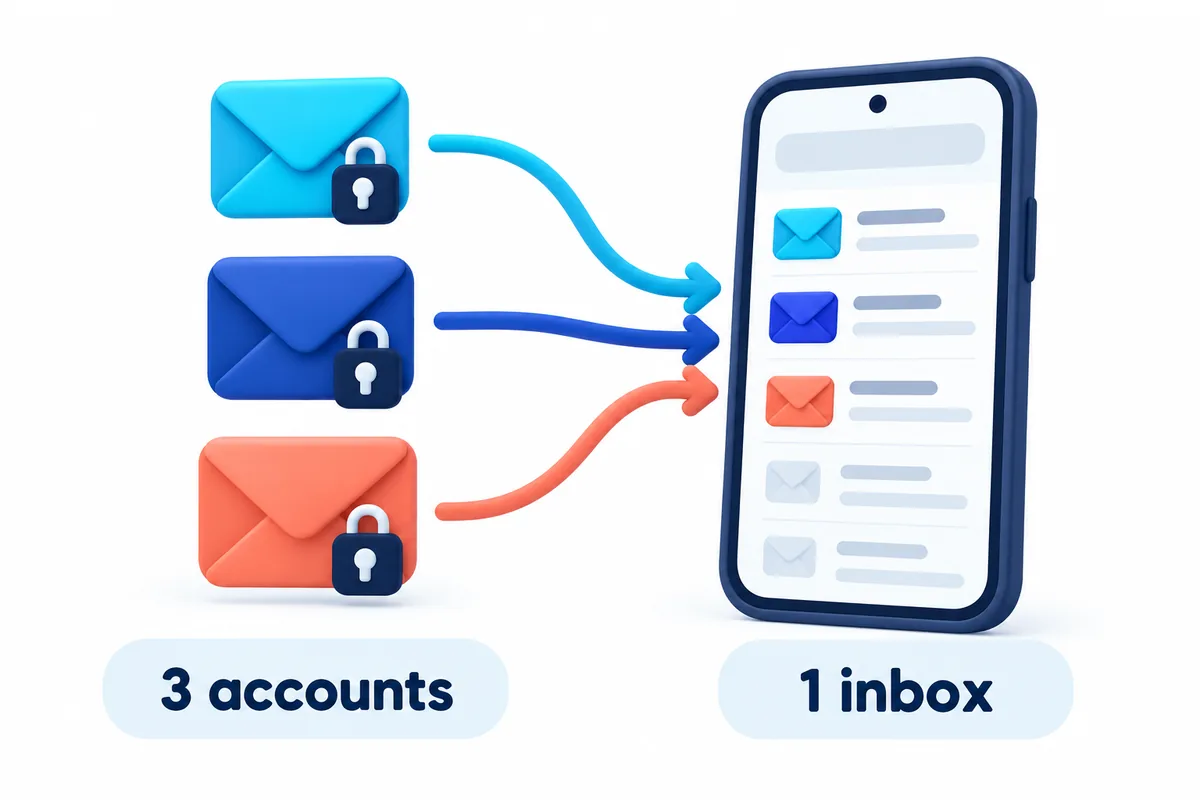
Option A: Separate apps. Gmail for the Gmail address, Yahoo Mail for the Yahoo, Outlook for the Outlook. Three icons, three layouts, three places to look. This is how most phones end up, and it is why “I didn’t get your email” is the most common thing a parent says. The email arrived. It arrived in the app they do not open.
Option B: One inbox. One app that shows all the accounts together. One icon, one layout, one place. When someone emails the old Yahoo address, it shows up in the same list as everything else.
For a parent, Option B every time. Gmail can do this: open Gmail, tap the profile picture, tap “Add another account,” and add the Yahoo or Outlook address. Then in the side menu choose “All inboxes.” It works, but “All inboxes” is a setting that gets un-set, and the app still defaults back to showing one account at a time.
The other route is an app built around one inbox from the start, which is what Easy Mail is. More on that at the end.
Step 2: Put it where they can see it
Email should be on the home screen, not in the app drawer. Not on the second page. On the first screen they see when they unlock the phone.
- Find the email app icon.
- Press and hold it until the home screen appears behind it.
- Drag it to the first screen, near the bottom where the thumb rests.
If the home screen is already cluttered with apps they never use, move those off. A home screen with six things on it is easier than one with thirty.
Step 3: Make the text big enough to read without effort
Do this at the phone level, not just in the email app, so it applies everywhere.
- Open Settings.
- Tap Display.
- Tap Font size (sometimes under “Display size and text”) and drag it up two or three notches.
- While you are there, turn up Display size one notch too. That makes buttons bigger, not just text.
Then open the email app and look at it. If they lean toward the phone to read, it is still too small.
Step 4: Handle the passwords like a physical object
Write every email address and password on an index card. Yes, on paper. Put it somewhere they choose, not somewhere you choose, so they remember it.
The alternative is that in three months they get logged out, the phone asks for the password, they do not have it, and email is dead until you visit. The index card prevents the single most common email failure for older adults, which is not scams or confusion. It is being locked out.
If their Google account has two-step verification turned on and it sends codes to this same phone, that is fine. If it sends codes to an old phone or an old number, fix that now: Settings, Google, Manage your Google Account, Security, 2-Step Verification.
Step 5: Turn on notifications, then turn most of them off
They should get a notification when a real email arrives. They should not get one for every promotional email, or the phone becomes something that buzzes all day and gets ignored.
In Gmail: Settings, tap their account, Notifications, choose High priority only. Gmail will decide what is important, and it is usually right. Do the same in any other email app you installed.
Step 6: Sit with them and send one email
Not to their friend. To you. Watch them do it start to finish: open the app, tap compose, type your address (or pick you from suggestions), write one line, send. Then reply from your phone while sitting there, and watch them open the reply.
You will see exactly where they hesitate. That is the spot that needs one more explanation. Everything else you did today is a guess until you watch this.
Step 7: Leave them the scam rule
Before you go, one sentence: “If an email asks you to tap a link to fix a problem with your account, don’t. Call me instead.”
That is it. Not a lecture on phishing. One rule, and permission to call you. Our 7-check guide is there if they want the full version.
How Easy Mail fits in
Easy Mail is Option B from Step 1. It is an Android home screen with every inbox built in, so Gmail, Yahoo, and Outlook show up in one list with nothing to switch between. Email is on the home screen by design, not because you dragged it there, and the layout was built for people who want a simpler phone. For a parent with two or three old addresses, it removes the biggest single reason email stops working.
Get Easy Mail Email Launcher on Google Play.
Frequently asked questions
Should I just create one new Gmail address and forget the old ones?
Usually no. People they know still have the old addresses, and mail will keep going there. Bring the old accounts into one inbox instead. If an account is truly dead (no login, no recovery), then yes, let it go.
How do I see their email if something goes wrong and I’m not there?
Add their account to your own phone as a second account, with their permission. You can check it and help by phone. Remove it if they would rather you did not.
Is it safe to write the password on paper?
For most older adults, yes. The realistic risk is being locked out, not a burglar reading an index card. If they live in a shared facility, keep the card in a drawer rather than on the fridge.
Keep Reading
How to Mass Delete Emails Fast on Android
How Can I Delete an Email in Easy Mail Email Launcher?
Still have questions? Read more Easy Mail FAQs, or learn about features like Inbox Zero.
Sources: Pew Research Center: Internet use, smartphone ownership, digital divides in the US (Jan 2026)