Android home screen tips
Icon Arrangement Android: Build a Home Screen You Can Scan in Seconds
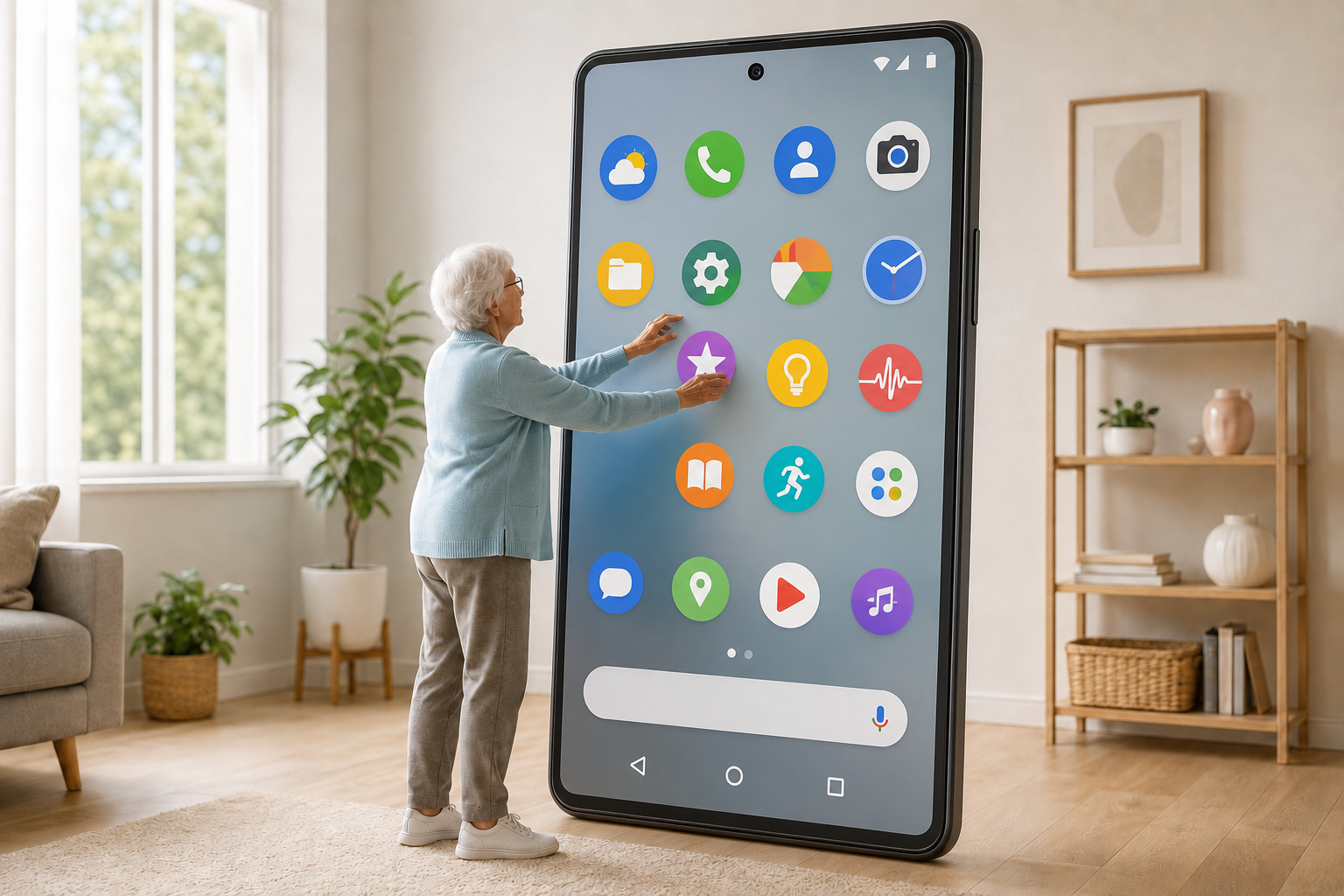
Your home screen is the control panel for everything you do on your phone. When icon arrangement android layouts feel random, you waste time hunting for the right app. A few simple placement rules turn a cluttered grid into a screen you can read at a glance.
This guide focuses on icon arrangement android owners use every day: where to put frequent apps, how to group related tools, and when to move the rest into the app drawer. We also cover how Easy Mail Email Launcher fits into a clean layout with a unified inbox on your first home screen panel.
Want email and a smarter launcher layout on one home screen? Install Easy Mail Email Launcher from Google Play.
Why Icon Placement Matters on Android
Android lets you place icons almost anywhere on the grid. That freedom is useful, but it also means bad habits show up fast. Icons drift to random spots after installs. Folders grow without names. The apps you open ten times a day sit on page three while shopping apps sit front and center.
Good icon arrangement android users treat the first home screen like prime real estate. Only daily tools live there. Everything else moves to the drawer or a secondary page. The goal is muscle memory: your thumb should land on the right icon without searching.
Why Should You Start With a Simple Grid Strategy?
Before you drag icons around, decide what belongs on screen one. Most people need messaging, browser, camera, maps, and mail within one or two swipes. Put those in the bottom two rows where thumbs reach easily on large phones.
Leave the top rows for widgets or less frequent apps. If you use a clock or weather widget, keep icon rows below it so nothing overlaps. On Samsung, Pixel, and other stock layouts, long press an empty area to enter edit mode, then drag icons into place.
Group Icons by Job, Not by Color
Folders help when you have more than a dozen apps you still open weekly. Name folders by task: Travel, Finance, Work, or Kids. Avoid vague labels like Misc that become a junk drawer in a week.
Icon arrangement android power users often keep one folder for stores and delivery apps, another for banking, and a third for social feeds. When a folder holds more than nine icons, split it. Large folders slow you down because you hunt inside them every time.
Keep Email on the First Panel
Mail is one of the few apps that justifies front row placement. If your current email icon opens a separate client that loads slowly, consider a launcher built around inbox access. Easy Mail Email Launcher puts a unified inbox one swipe from your home screen so Gmail, Yahoo, Outlook, and other accounts share one feed.
That reduces icon sprawl. Instead of three email apps on your grid, you keep one launcher entry that handles every account. For more launcher ideas, see our roundup of best Android launcher apps in 2026.
Not sure what a launcher controls on your phone? Read What Is a Launcher for a quick overview before you rearrange icons.
How do You Balance Aesthetic and Speed?
Symmetry looks nice in screenshots, but speed wins daily use. Align icons in neat rows, yet prioritize reach over perfect spacing. If you are right handed, bias important apps toward the lower right. Left handed users may mirror that to the lower left.
Wallpapers with busy patterns make icons harder to spot. Use a calmer background or enable icon labels if your theme supports them. Small readability gains add up when you unlock your phone dozens of times per day.
How do Maintenance Habits Prevent Clutter?
Icon arrangement android layouts fail when nobody reviews them. Once a month, remove apps you have not opened in thirty days. Uninstall or move them to the drawer. After each new install, decide immediately: home screen, folder, or drawer only.
When you switch launchers, expect icons to shift. That is normal. Spend five minutes resetting the grid instead of living with a messy default.
You Might Also Want to Know
How do I enter icon edit mode on Android?
Long press an empty area on the home screen or long press an icon, then choose Home settings or Edit. From there you can drag icons, create folders, and adjust grid size on supported phones.
Should email stay on the main home screen?
If you check mail often, yes. A launcher like Easy Mail keeps every account in one swipe so you do not need multiple email icons.
How many icons belong on the first page?
Most people do best with eight to sixteen daily apps plus one or two folders. Move everything else to the app drawer or a second page.
Will changing launchers erase my icon layout?
Layouts are tied to the launcher app. Switching launchers may reset positions, so plan a short reorder session after you change.
Arrange Icons for How You Actually Use Your Phone
Icon arrangement android success comes from limiting front page apps, naming folders clearly, and keeping mail easy to reach. Easy Mail Email Launcher combines a clean home screen with a unified inbox so your most important daily tool stays one gesture away.
Install Easy Mail Email Launcher on Google Play and pair a tidy icon layout with inbox access from your home screen.