Quick add guide
Add to Home Screen Android: Apps, Sites, and Shortcuts
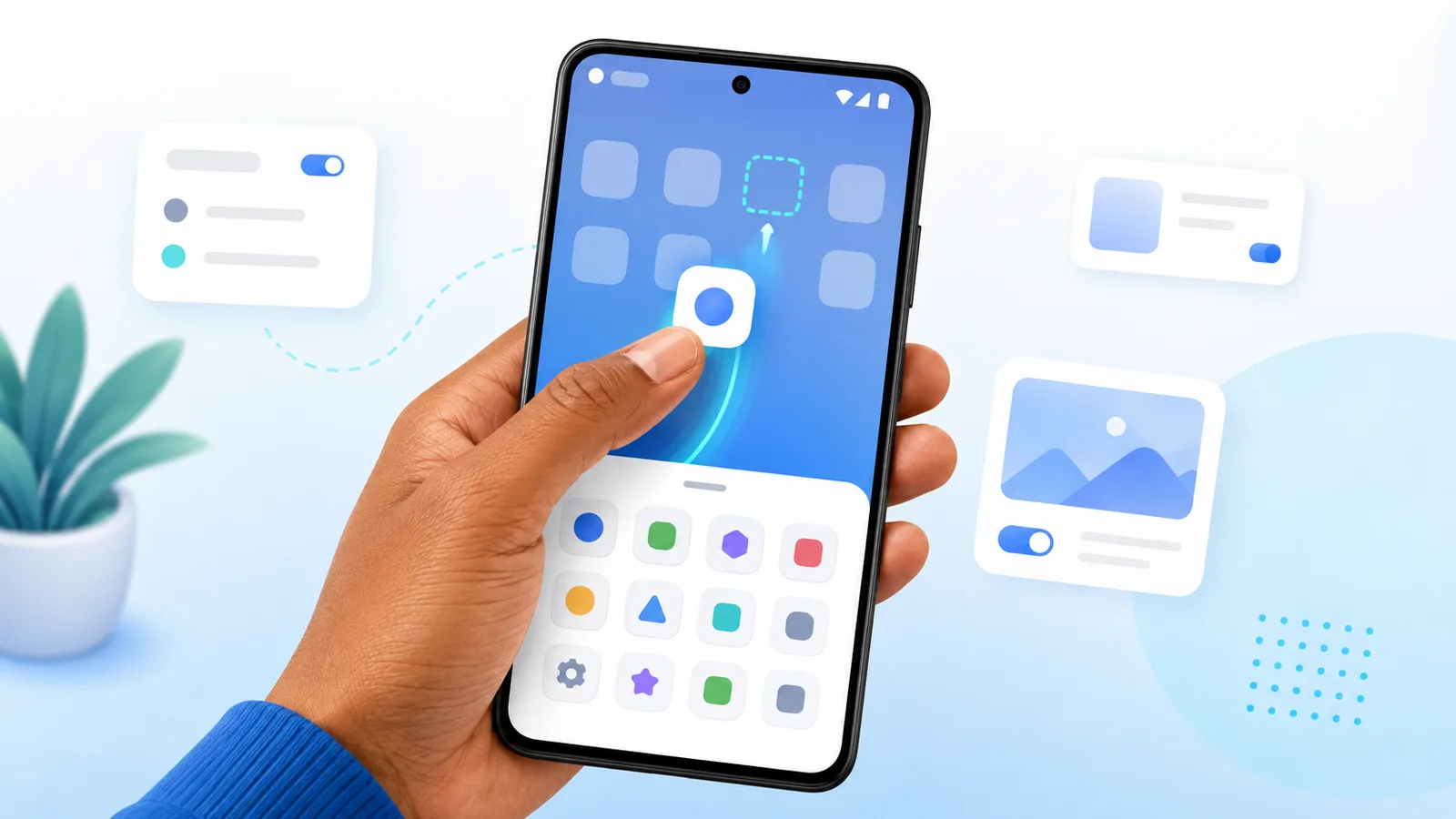
The add to home screen android flow takes seconds once you know where Android hides the option. This guide covers every route — the app drawer, the Play Store, recent apps, and Chrome — on Samsung, Pixel, and third party launchers.
Whether you use Samsung, Pixel, or a custom home app, the gesture follows the same long press pattern. We also cover why many people pin Easy Mail Email Launcher once instead of adding three separate mail icons, using a unified inbox on the launcher panel. New to home screen apps? Start with What Is a Launcher.
Add Easy Mail to your daily home flow from Google Play.
Add an Installed App From the Drawer
This is the officially documented path. Google covers it in Android Help under Add apps, shortcuts & widgets to your Home screens, and the steps below match stock behavior on Android 14 and later.
- Swipe up from the bottom of the home screen to open the app drawer
- Long press the app icon until the home screen appears behind it
- Drag the icon to an empty cell and release
On some Samsung builds you will see an Add to Home button in a popup after the long press instead of dragging. Either route produces the same result.
Add From the Play Store After Install
When an installation finishes, the Play Store shows an Open button rather than placing an icon for you. There is no automatic home screen placement unless your manufacturer enables it. If you skipped adding the icon at install time, open the drawer later and long press it from there.
Add From Recent Apps
If you cannot find an app to drag in the first place, Android Help covers drawer navigation in Find, open & close apps on Android.
Otherwise: open the app, then open the recents overview. Long press the app title or icon at the top of its card and choose Pin or Add to Home if your Android version supports it. This is the fastest route when you are already inside an app and realize you want a shortcut to it.
Add a Website From Chrome
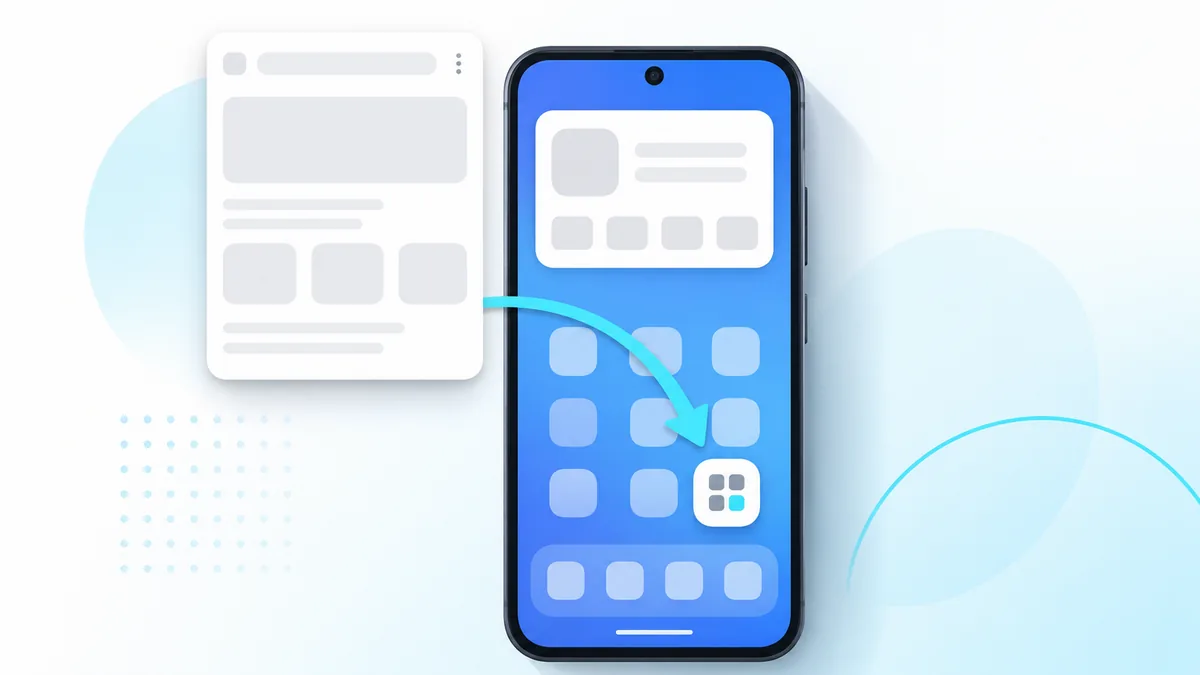
With the page open, tap the three dot menu, then Add to Home screen, then Add. Name the shortcut and confirm. It behaves like an app icon but opens the site. Useful for web apps and dashboards that have no Play Store equivalent.
Add Easy Mail as Your Launcher
Install from Google Play, press home, choose Easy Mail, tap Always. Your home screen now includes swipe right access to mail. Add your other apps around that panel without needing separate email icons.
Samsung Add to Home Variations
Samsung may label the action Add to Home screen, or restrict shortcuts to the home screen only depending on your One UI version. If drag and drop fails, long press the app icon in the drawer and watch for a small home icon you can tap instead.
Pixel and Stock Android
If a menu looks different on your device, check Android Help on changing what is on your Home screen before assuming your launcher is broken. Skins move options, they rarely remove them.
Pixel phones follow the standard long press and drag from the drawer. After a major Android update, repeat the gesture once to confirm nothing has changed.
Work Profile Shortcuts
Work profile apps are sandboxed and badged. Android Enterprise Help explains the boundaries in control work profile notifications.
Managed profiles may block adding certain apps to the personal home screen entirely. If an icon refuses to drag, check whether it lives inside a Work tab in the drawer. On most Samsung and Pixel devices personal and work shortcuts stay strictly separate, and that is the policy working as intended rather than a bug.
Folder New Shortcuts Immediately
Drop each new icon into a named folder as you add it. Unnamed folders become messy within days, so use task names like Banking or Travel rather than generic labels. When the grid fills up, work through the layout advice in icon arrangement android.
Use One Mail Icon Instead of Three
Many people add Gmail, Yahoo, and Outlook as three separate icons, then tap through all three every morning. Easy Mail Email Launcher replaces that with one launcher and a swipe right to mail. Connect every account inside the unified inbox rather than multiplying shortcuts, and you keep full provider features behind a single feed.
For non app shortcuts — contacts, directions, documents — see adding shortcuts to homescreen. To compare home apps, see best Android launcher apps in 2026.
Widgets After Icons, Not Before
Widget sizing is set by the developer, not by you. Android’s own widget design guidance explains why some widgets resize freely and others snap to a fixed grid.
Widgets use their own add flow: long press an empty area of the home screen, choose Widgets, pick a size, and place it. Because widgets lock grid cells, add them only after your daily app icons are in final positions. Sequencing this the other way round means rebuilding the layout twice.
Remove Shortcuts Without Uninstalling
Long press the home screen icon and choose Remove. The app stays in the drawer — only Uninstall actually deletes it. Removing the Easy Mail shortcut does not delete your connected accounts if you reinstall later.
Watch for Duplicate Icons
Some launchers allow the same app on the grid twice. It is easy to do accidentally when you add an icon, forget, and add it again from a different route. Sweep for duplicates during a monthly cleanup so your tidying does not quietly backfire into rows of identical icons.
When Not to Add an Icon
Infrequent apps belong in the drawer, where search finds them faster than your eyes can scan a grid. Reserve home rows for genuine daily tools. Email almost always qualifies, which is exactly why a unified inbox on the launcher beats three separate mail shortcuts.
Verify Shortcuts After a Backup Restore
Restoring a phone from backup often reinstalls apps while dropping home screen shortcuts, so plan to rebuild your rows after any migration. Reinstalling Easy Mail restores the mail swipe once you set it as the default launcher again.
Whatever you add, open it once straight away. Broken shortcuts fail silently until you tap them in a hurry, and one test tap now saves a frustrating moment later.
Pace Yourself After Bulk Installs
A run of new downloads clutters the drawer first and then the grid if you add everything at once. Work in batches: install three apps, place the icons, then install three more. If you are showing someone else — especially anyone switching from an iPhone and expecting icons to appear automatically — walk them through the gesture in person once. Watching it beats reading about it.
Add to Home Screen FAQ
Where is add to home screen on Samsung?
Long press the app in the drawer and drag it out, or use the Add to Home button in the popup that appears.
Why can’t I drag an app to my home screen?
Long press empty space first to enter edit mode. If it still fails, the app may sit in a managed work profile that blocks personal shortcuts.
Can I add a website to the home screen?
Yes. Open the page in Chrome, then use the three dot menu and choose Add to Home screen.
Do shortcuts sync across phones?
No. Home screen layouts are tied to the launcher on each device, so you recreate shortcuts manually on a new phone.
Does adding Easy Mail remove my Samsung or Pixel launcher?
No. The original launcher stays installed. Easy Mail only becomes your home app if you set it as the default when prompted, and you can switch back at any time.
How do I add email without three icons?
Add Easy Mail once and connect Gmail, Yahoo, Outlook, and any other accounts inside its unified inbox.
Add Icons That Earn Their Space
Every icon you add should save future taps, and anything that does not is just decoration you have to look past. Easy Mail Email Launcher earns its spot by putting a unified inbox on your primary launcher swipe.
Install Easy Mail Email Launcher from Google Play and add mail to your home screen the smart way.
Keep Reading
Adding Shortcuts to Homescreen on Android
App Drawer in Android: Your Full App List in One Gesture
Still have questions? Read more Easy Mail FAQs, or see how the Easy Mail launcher works.