Launcher switching
How Do You Change Launchers on Android?
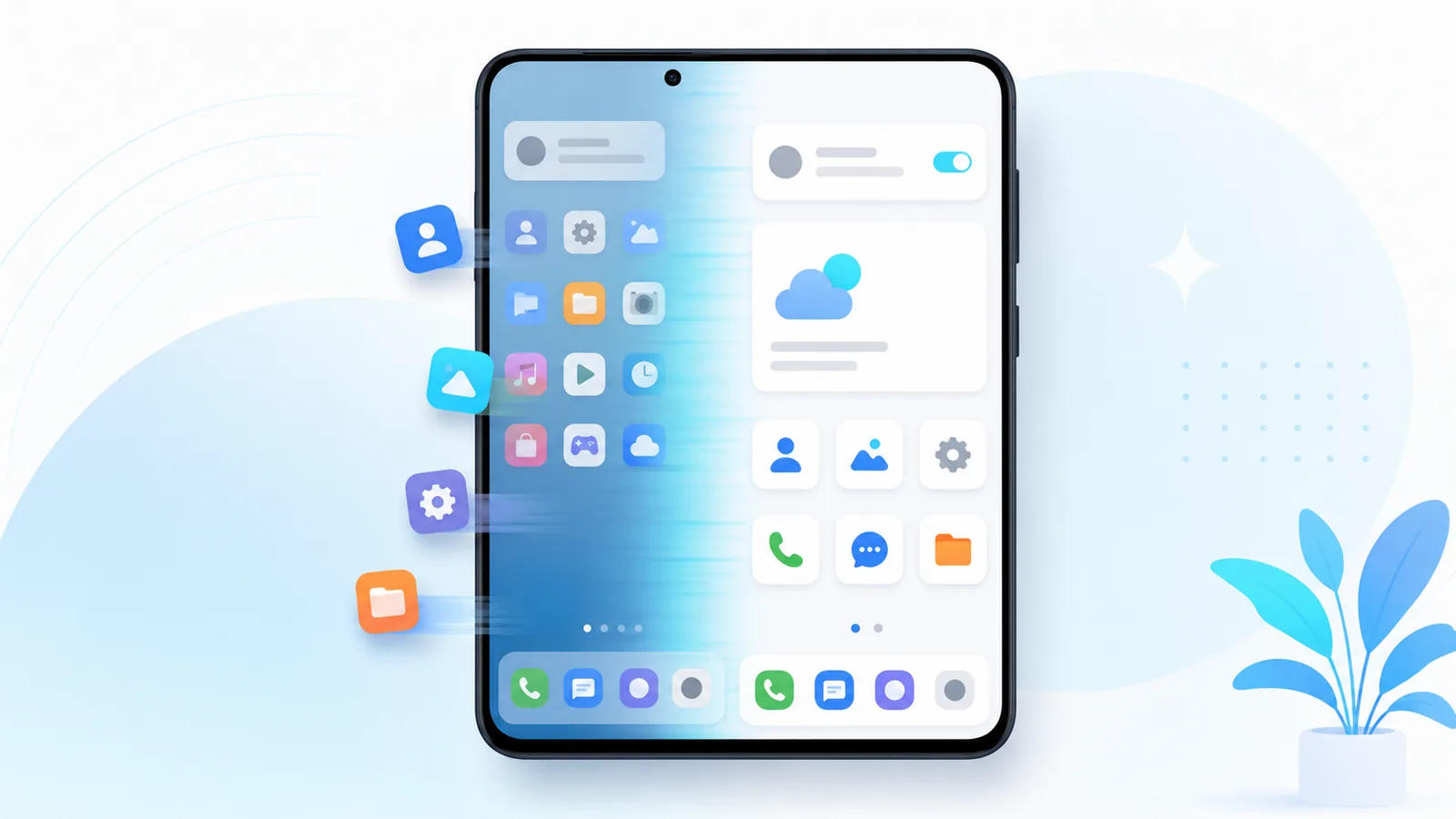
People ask how do you change launchers on android when they outgrow a stock layout or want mail on a dedicated swipe. Here is the whole process end to end — install, trial, configure, and revert — in the order that avoids rework. It takes minutes and nothing about it is permanent.
Changing launchers is one of the safest customizations Android allows — no root, no data loss, no uninstalls required. We use Easy Mail Email Launcher as the worked example for anyone who wants a unified inbox after the switch, but the sequence is the same for any home app. For what the default setting itself does, see default launcher android. For the concept, see What Is a Launcher.
Change to a mail first launcher. Get Easy Mail Email Launcher on Google Play.
Install the Launcher You Want to Try
Open Google Play, search for your launcher, and tap Install. For inbox focused layout, choose Easy Mail Email Launcher. Wait for download to finish before pressing home.
Trigger the Default Chooser
If the prompt never appears, set it manually. Google’s help page on setting or clearing default apps shows the Settings path on stock Android.
Press the home button from any app. Android lists installed launchers. Tap Easy Mail, then select Always if you are ready to commit or Just once for a trial session.
Missing the list? Settings, Apps, Default apps, Home app gets you the same result. The full reference for that setting — including how to clear a default you no longer want — is in default launcher android.
Configure Before You Rebuild Icons
Swipe through Easy Mail panels first. Learn which gesture opens mail, news, and search. Add email accounts with the plus button inside the unified inbox. Once gestures feel natural, rearrange icons on the main grid.
Compare other options in best Android launcher apps in 2026 if you still explore.
Move Icons and Widgets After Switching
Rebuilding a layout uses the same gestures on any launcher. Android Help covers them in Add apps, shortcuts & widgets to your Home screens.
Expect a blank or generic grid at first. Long press to add apps from the drawer. Recreate folders you relied on before. This is normal when you change launchers on android because layouts do not transfer between apps.
Shortcut tips: how to add an app to home screen and add to home screen.
Switch Back to Stock Launcher
- Open Settings
- Tap Apps, then Default apps, then Home app
- Choose Samsung One UI Home, Pixel Launcher, or your OEM equivalent
Your previous third party launcher stays installed unless you uninstall it. Easy Mail can remain installed for mail only testing even if you revert home defaults temporarily.
When Changing Launchers Helps Most
Consider switching when you open email more than social apps, when stock grids feel cluttered, or when you want cleanup and AI reply tools inside the launcher. Easy Mail adds Inbox Zero bulk delete and AI Respond drafting on the same swipe path.
Pair launcher change with default launcher android settings if prompts confuse you.
Keep Your Old Launcher Installed During Trials
Leave your previous home app installed until you are certain. Switching back takes seconds through Default apps, and uninstalling early is the one step in this process that is genuinely annoying to undo. Give it a full week before you clean up.
Use Just once rather than Always on that first home press. Then actually exercise it: press home several times, open the drawer, swipe to mail, send yourself a test message. If the flow feels right after a day of real use, go back to Default apps and set it to Always.
Icon Packs and Themes After Switching
Themed icon support depends on your Android version, and Statcounter’s Android version share data shows how many releases are still in active use, so do not assume a feature is missing when it is version gated.
Third party icon packs may require a compatible launcher. Easy Mail focuses on speed and mail access rather than heavy theming. Add icon packs later if you want, after mail gestures feel automatic.
Connect Mail During First Setup
Add your primary Gmail or Outlook account immediately after you change launchers on android. Sending a test email confirms notifications and swipe access work before you rebuild the rest of your grid.
Update Other Family Members
If you share a household plan for support, show others how to press home and pick Easy Mail once. One tutorial prevents panic calls when Android shows the default launcher dialog after an update reinstalls launchers.
Changing Launchers FAQ
How do you change launchers on android without losing apps?
Apps stay installed. Only shortcuts rearrange.
Can I try Easy Mail without setting Always?
Yes. Choose Just once on the first home press, then decide later.
Does changing launchers affect notifications?
Notification shade stays system controlled. Mail alerts follow Easy Mail settings when it is default.
How do I uninstall a launcher I do not want?
Set another default first, then uninstall from Google Play like any app.
Switch Launchers When Your Home Screen Should Do More
Every step here reverses in seconds, which makes trying a new home app one of the lowest risk things you can do to your phone. Easy Mail Email Launcher gives you launcher navigation plus a unified inbox without giving up a single one of your other apps.
Change to Easy Mail Email Launcher today via Google Play.
Keep Reading
Best Android Launcher Apps in 2026
Add to Home Screen Android: Apps, Sites, and Shortcuts
Still have questions? Read more Easy Mail FAQs, or see how the Easy Mail launcher works.