Icon layout ideas
Make Every App One Comfortable Tap Away
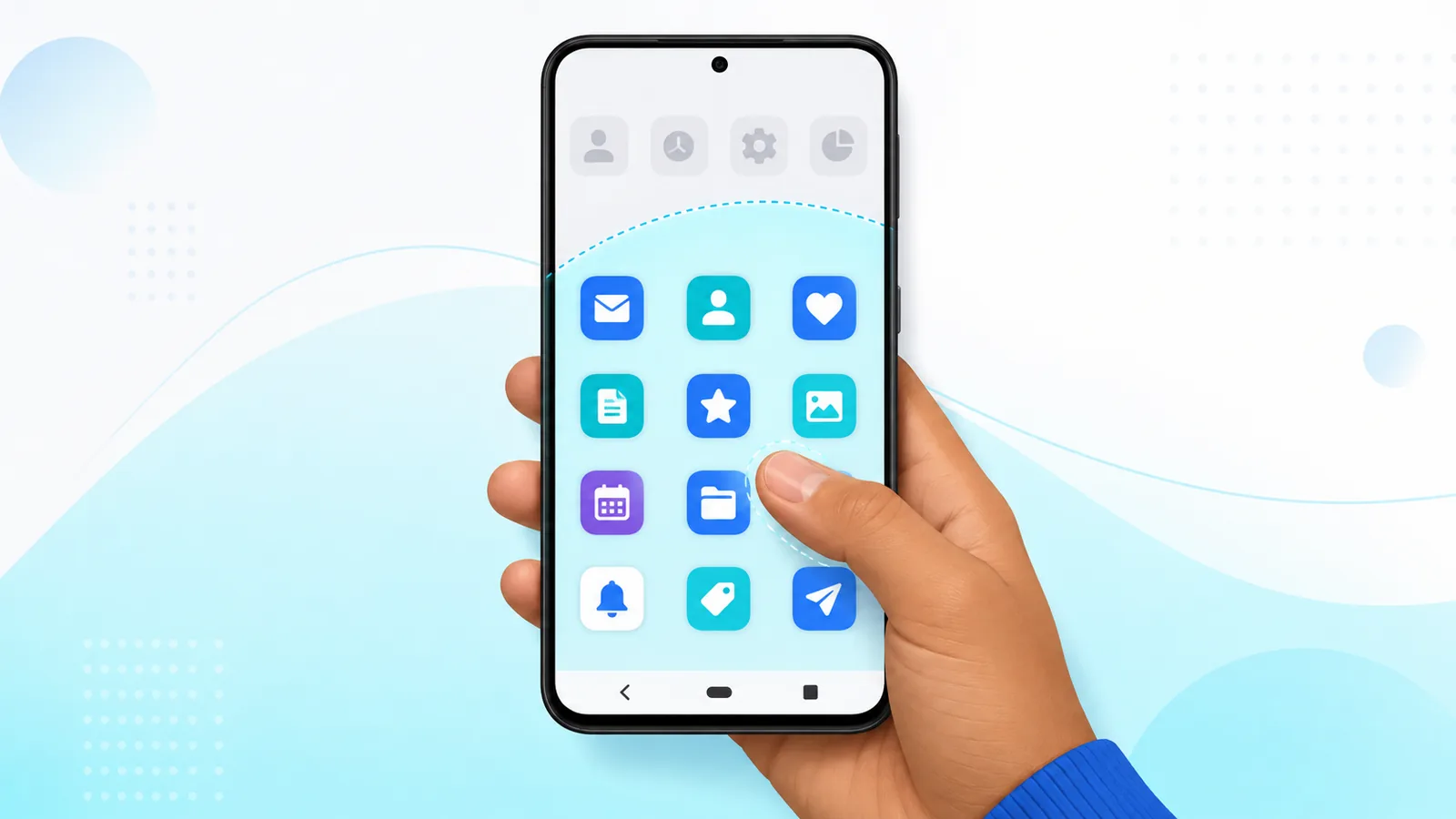
One of the biggest benefits of android phones is their customizability. The key is to follow a few visual rules: readable spacing, logical groups, and nothing important hiding on page four.
Whether you want complex app groups or less daily hunting for your favorite apps, this guide will help you easily improve your android layout. Easy Mail Email Launcher helps make this customization easy with a simplified home screen and unified inbox.
Build a cleaner icon screen with Easy Mail Email Launcher on Google Play.
Think in Thumb Zones
This is measurable, not aesthetic. Nielsen Norman Group’s research on touch target size recommends interactive targets of at least 1 cm square, since the average thumb contact area is roughly 2.5 cm wide.
Large phones put the top corners far from your thumb. Place daily icons in the bottom two rows and reserve the top spaces for apps you use less frequently. To move your app icons, simply press and hold an app icon and then move your finger to where you you’d like it to be. This single change will make a noticeable difference in how easy it is to use your phone.
Limit Color Chaos
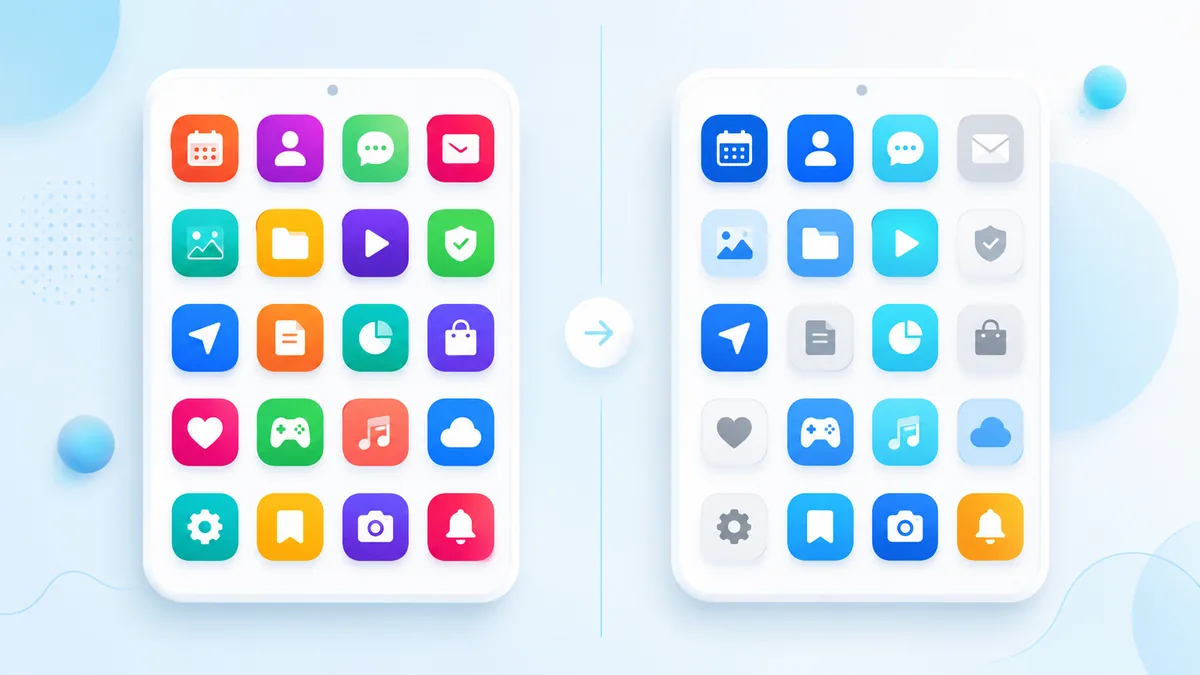
Icon packs can unify colors, but stock icons vary by brand. Group similar hues into folders so the grid reads as blocks instead of noise. A row of blue banking apps beats scattering them across pages.
Use One app for all your email accounts
Using multiple email apps is repetitive and takes up valuable space on your home screen. Try using an app like Easy Mail Email Launcher that combines all the major email providers into a unified inbox without taking up space on your home screen. You can easily access all your emails with a simple swipe right form your home screen.
Pages vs Folders
Extra home pages work great for themed setups. But if you simply like to organize similar apps, folders prioritize easy access. Create a folder by following these steps
Pick one system and try it for a week to determine which is best for you. See icon arrangement android and best Android launcher apps in 2026 for examples.
Wallpaper Contrast
Busy photos hide icons. Use softer wallpapers or enable shadows behind icons if your launcher supports them. Contrast is accessibility, not just aesthetics.
Clean up unused apps
We know getting a new app can be exciting. However, unused apps can pile up once the excitement fades. Research shows that the avg person has 80 apps on their phone but only uses 9 daily.
Dock Rows and Favorite Slots

Many phones lock four or five icons into a bottom dock that appears on every home page. Reserve dock slots for phone, messages, browser, and mail. A phone with icons android users love usually treats the dock as sacred space.
Icon Size and Grid Density
Where these controls live varies by launcher. Android Help’s page on changing what is on your Home screen covers the stock Android version.
Larger icons help eyesight and thumbs. Smaller grids fit more apps but increase mis taps. Adjust density in launcher settings until you can hit the right icon on the first try while walking or riding transit.
Accessibility and Icon Clarity
If anyone using the phone relies on larger text or higher contrast, start from Android’s accessibility design guidance rather than guessing at sizes.
High contrast between wallpaper and icons helps everyone, especially outdoors. Enable icon labels if shapes blur together. Easy Mail keeps mail recognizable with a dedicated swipe so you rely less on tiny envelope icons alone.
Testing Layout With Real Use
Live with a phone with icons android layout for one week before redesigning again. Track which icons you still hunt in the drawer. Move only those to the home grid so changes reflect reality, not guesswork.
Align Icons With Easy Mail Swipe
Place communication apps near your thumb but let Easy Mail handle mail through swipe right. That frees an icon slot for maps or camera while keeping every inbox one gesture away on a phone with icons android users actually maintain long term.
Wallpaper Rotation
Seasonal wallpapers refresh a phone with icons android layout without moving apps. Pick calm backgrounds during work months and bolder art on vacation knowing icons stay in the same cells you already memorized.
Phone With Icons FAQ
How many home pages should I use?
One or two active pages plus a drawer is enough for most users.
Should mail icons sit at the bottom?
Yes if you check email often. Easy Mail also offers a dedicated swipe panel.
Can I copy someone else’s icon layout?
Use it as inspiration, but match icons to your own app list.
Do widgets count as icons?
Widgets occupy grid cells but behave differently. Plan space before adding both.
Make Icons Serve Your Routine
A thoughtful phone with icons android layout saves seconds hundreds of times per week. Easy Mail Email Launcher keeps mail visible through a unified inbox without crowding your grid.
Download Easy Mail Email Launcher and simplify mail icons on Google Play.