Android organization
Android Organize: Clear Steps for a Phone That Feels Lighter
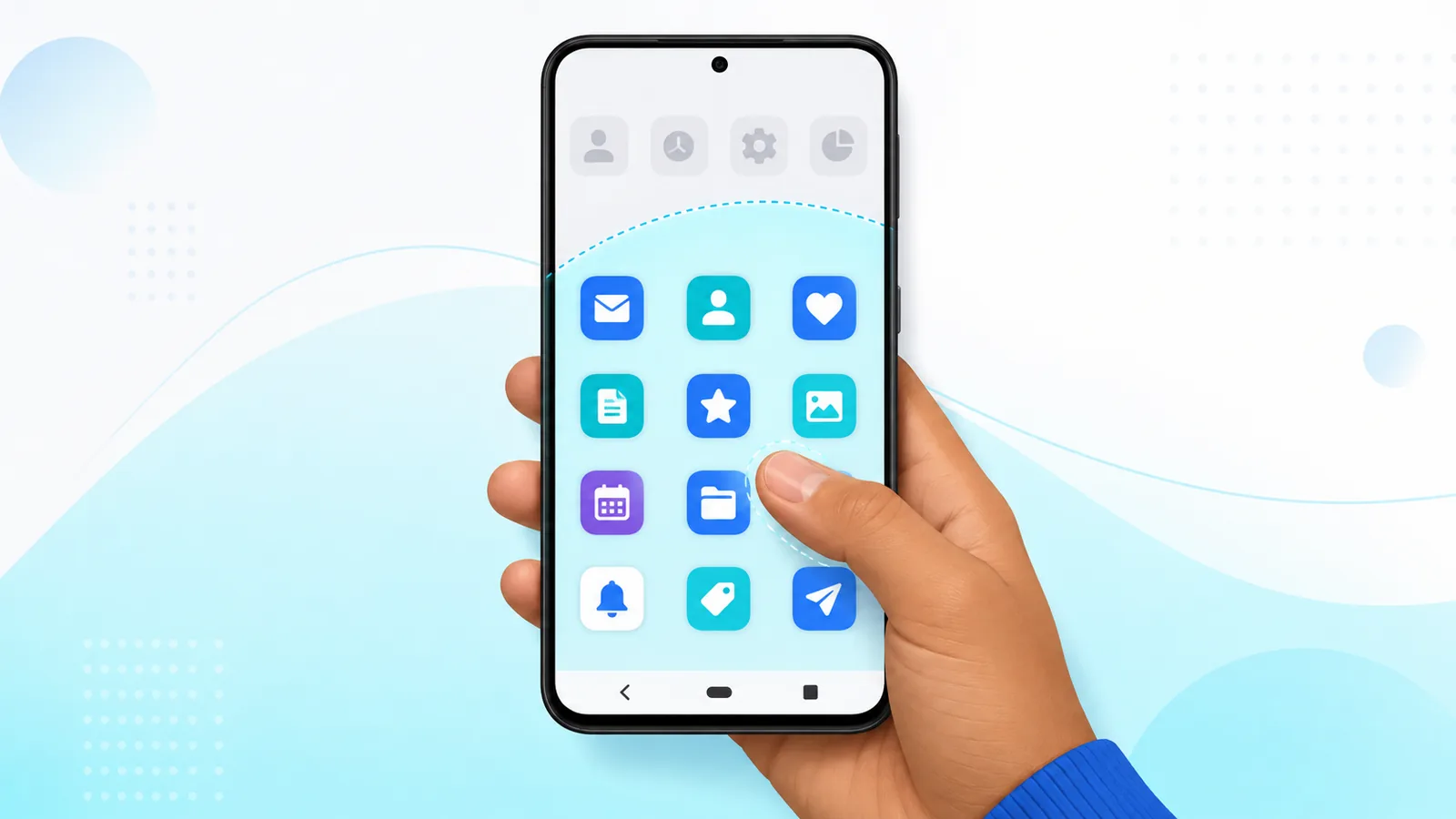
When people search android organize, they usually want less chaos, not another complicated system. The good news is that small changes to your home screen, app drawer, and inbox remove most of the daily friction without a full phone reset.
Organization on Android spans three zones: what you see when you unlock, where apps hide in the drawer, and how email piles up in the background. This article walks through android organize habits that stick, plus how Easy Mail Email Launcher merges launcher and mail so you manage more from one screen. Start with What Is a Launcher if the terms feel unfamiliar.
Ready to organize mail and your home screen together? Get Easy Mail Email Launcher on Google Play.
The Three Zones to Organize
Think of your phone in layers. Layer one is the home screen and its folders. Layer two is the app drawer where infrequent apps live. Layer three is communication: email, messaging alerts, and notifications that pull you back all day.
Android organize projects fail when you only fix layer one. A spotless grid still feels messy if your inbox holds ten thousand unread promos or if every app buzzes at once. Work through each layer in order so progress lasts.
Home Screen: Keep the First Page Honest
Android Help walks through the mechanics in Change what’s on your Home screen on Android if you are unsure how to move or remove an item without uninstalling it.
Limit screen one to tools you open daily. Move shopping, games, and occasional utilities to the drawer or page two. Create folders by purpose, not by app store category. A folder named Bills beats one named Google because you remember the task faster than the publisher.
After you trim icons, review widgets. Remove stale ones that no longer help. Each widget consumes space and attention. Keep one or two that save taps, such as calendar or weather, and drop the rest.
App Drawer: Sort Once, Search Often
Search is faster than sorting for most people. Android Help’s page on finding, opening, and closing apps covers the swipe up gesture and in drawer search.
Most launchers alphabetize the drawer automatically. If yours allows custom sorting, pick one scheme and leave it. Searching the drawer is often faster than memorizing where a rare app lives. Practice the swipe up gesture until it becomes reflex.
Uninstall apps you do not recognize. They clutter search results and sometimes run in the background. Android organize maintenance takes ten minutes monthly and prevents creep.
Email: Where Clutter Hides in Plain Sight
Unread mail creates stress even when you are not looking at it. Consolidate accounts inside Easy Mail Email Launcher so one unified inbox replaces three separate apps. Add Gmail, Yahoo, Outlook, and others with the plus button, then toggle between combined and single account views.
For deeper inbox habits, read effective strategies for email management success. When backlogs grow huge, pair organization with bulk cleanup from our guide on how to mass delete emails fast on Android.
Notifications: Organize What Reaches You
Most of the cleanup happens at the OS level rather than inside each app. See Android Help on controlling notifications on Android for channel and importance settings.
An organized phone still feels noisy if alerts are unmanaged. Open Settings, then Apps, and review notification permissions for low value senders. Mute marketing lists at the source when providers allow it. Keep alerts on for mail that truly needs same day replies.
Easy Mail push notifications are tuned for launcher level speed so important mail is less likely to sit unnoticed. That supports android organize goals because you check once in a dedicated window instead of reacting to random pings all day.
A Weekly Reset That Takes Five Minutes
- Remove new home screen icons you never tap
- Clear completed apps from recent tasks if your phone feels sluggish
- Scan your unified inbox and archive or delete obvious junk
- Adjust one notification channel that bothered you during the week
Small repeats beat marathon cleanup sessions. Link this routine with icon arrangement android tips when your grid needs a visual refresh.
Common Android Organize Questions
What should I organize first on Android?
Start with the home screen because you see it every unlock. Then tackle email volume, since unread counts create background stress.
Do I need a new launcher to organize Android?
Not always, but a launcher like Easy Mail helps when you want mail and home screen control together.
How often should I review my app layout?
A quick monthly pass is enough for most people. Review sooner after travel or a burst of new installs.
Can I organize email without losing folders?
Yes. Easy Mail keeps existing labels and folders while you consolidate accounts in one view.
Organize for Less Friction Every Day
Android organize wins come from honest home screens, lean notifications, and inboxes that stay readable. Easy Mail Email Launcher supports all three with launcher level mail access and a unified inbox on the panel you already swipe to first.
Download Easy Mail Email Launcher and organize mail plus your home screen from one app.